Google Sheets
Google Sheets
- Purpose: Connect a live Google Sheets spreadsheet to Datalytics for real-time analytics.
- When to use it: Great for teams maintaining data in Google Sheets who want dashboards without manual exports.
- How to create it:
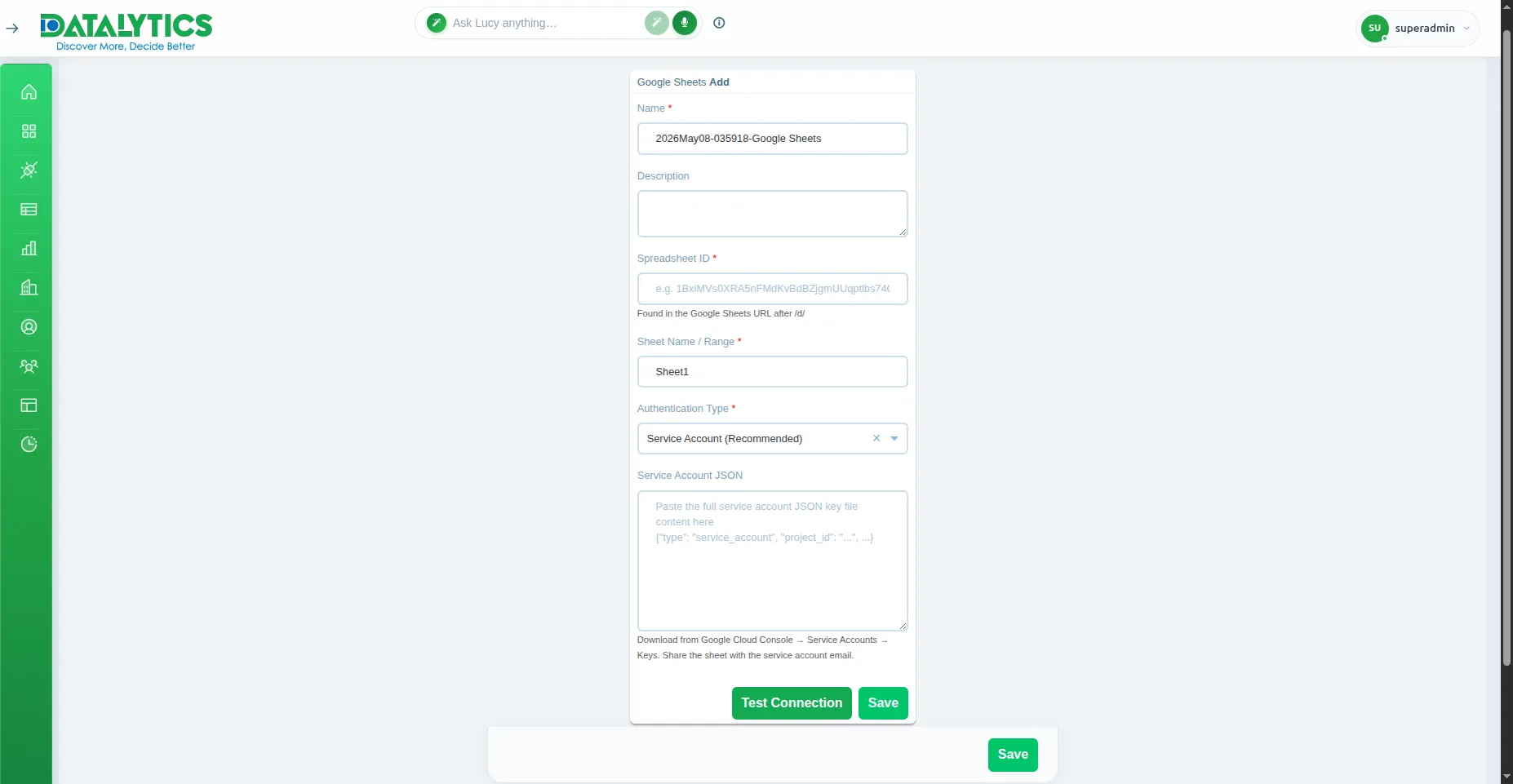
- Go to Data Sources and click Add.
- Select Google Sheets.
- Name: Enter a unique name for this connection.
- Spreadsheet ID: The ID from the sheet URL:
https://docs.google.com/spreadsheets/d/**SPREADSHEET_ID**/edit. - Sheet Name: The exact tab name to read (default:
Sheet1). - Authentication Type: Choose one:
- Service Account: Paste the full JSON of a GCP service account key. Share the sheet with the service account email.
- API Key: Enter an API key for public spreadsheets (no sharing required, but sheet must be publicly accessible).
- Click Test Connection to verify, then Save.
Note: For Service Account auth, the sheet must be shared with the service account email address (
xxxx@project.iam.gserviceaccount.com) with at least Viewer access.